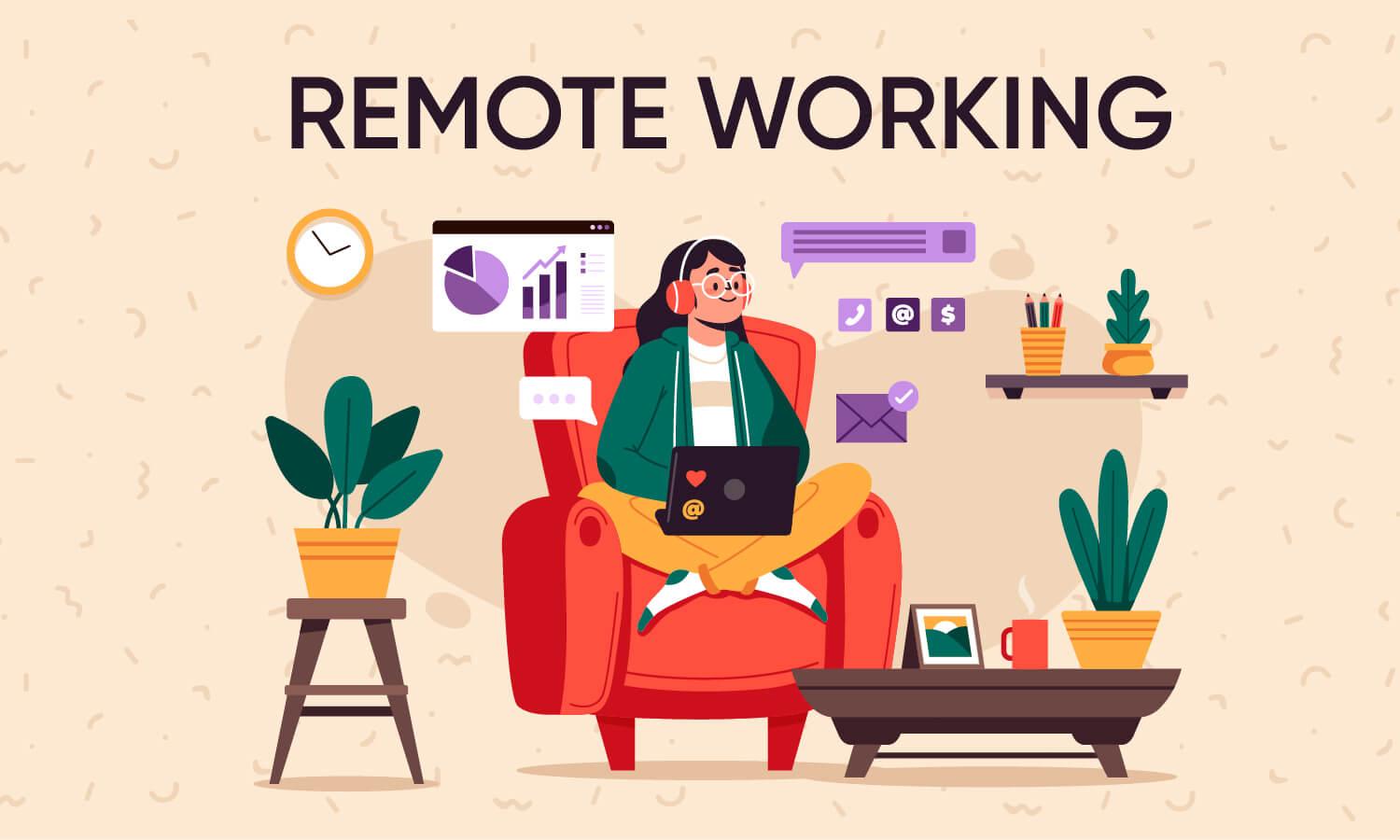

Working From Home (WFH) – A Guide
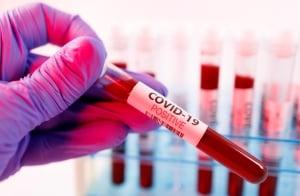
As we enter the COVID era, WFH will become increasingly more required for all workplaces. IS have put together a process which will guide you through getting up and running from your home. Ideally, you will have a hospital device, but this will not always be possible, especially is you have to isolate at short notice. Before we get into the detail, there are some important considerations if you end up using a personal device.
If you are using a corporate device – please see this article.
- Ensure that your device has up to date anti virus and anti malware software running. They are not always the same thing.
- Ensure that you remain connected to the hospital network whilst working only. Once you finish working, please disconnect.
- Please ensure that no other family member has access to your device whilst you are remote working, personal or corporate. Teenagers and cyber security are polar opposites.
What do I Need to WFH
- You need the Fortinet VPN Client. You can get the software here if you are a MS Windows user or here if you are a MAC user. Note, if you are using a hospital device, one of the IS team will contact you and install the software for you. You can contact IS here.
- Installing the software on your own device is straight forward. Please see the video below if you would like a walk through.
- You need the Fortioken on your mobile phone. should download the app from either Google Play or the Apple App Store. You should search for the fortitoken app. The Icon looks like this:

- After you have installed the app on your phone, contact IS and let them know. They will undertake the required back end work and you will receive an email to your FSPH address which has an attacher QR Code.
- Open the QR code on your PC.
- Open your Fortitoken app on your phone and scan the QR code. It will install your token.
- When you login to the VPN using the Fortinet VPN Client, you will have 3 fields:
- Username (the same as that you use to login to your PC at work)
- Password (as above)
- Token (obtain the token, which changes periodically) from the Fortitoken app on your phone.
- If you are using your own device, IS will walk you through creating and saving a remote desktop connection (RDP) on your device. (Do NOT save your credentials in the RDP).
- You will then be able to access your work PC and work as though youu were sat in your office.
- If you have a hospital device, you will be able to work as normal.
Important
- You need the assistance of IS to facilitate WFH as there are many moving parts.
- Approval to WFH requires the authorisation of your Manager / Executive.